




Clearing your browser's cache is an important first step for troubleshooting web-based applications. Browsers store copies of web pages, images, and code in a cache to speed up future visits to a website. However, if a change or update was made to the webpage after you've already visited the page, it could cause functional and display issues due to the browser having an older version of the cache.
Keyboard Shortcut for Most Browsers
If you are using Microsoft Edge, Google Chrome, or Safari, you can quickly clear the cache with a keyboard
shortcut. While in your browser, press
Ctrl+Shift+Delete simultaneously on the keyboard to open the appropriate
window.
IMPORTANT: Be sure and close/quit the browser and restart it after clearing the cache and cookies.
How to Clear Your Cache
Google Chrome
- Click the
Tools Menu(three dotted lines in the upper-right corner).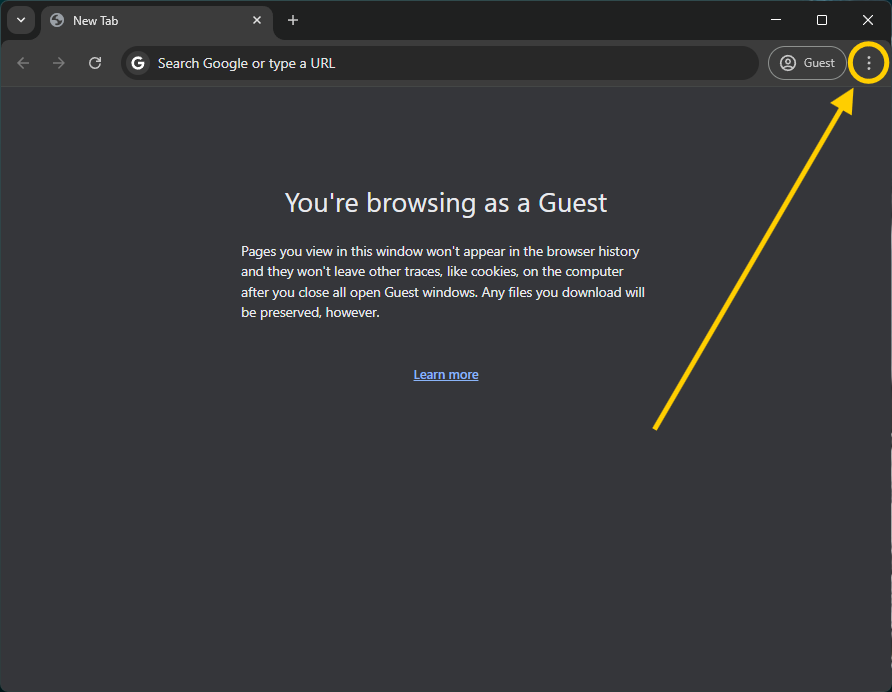
- Select
Delete browsing data...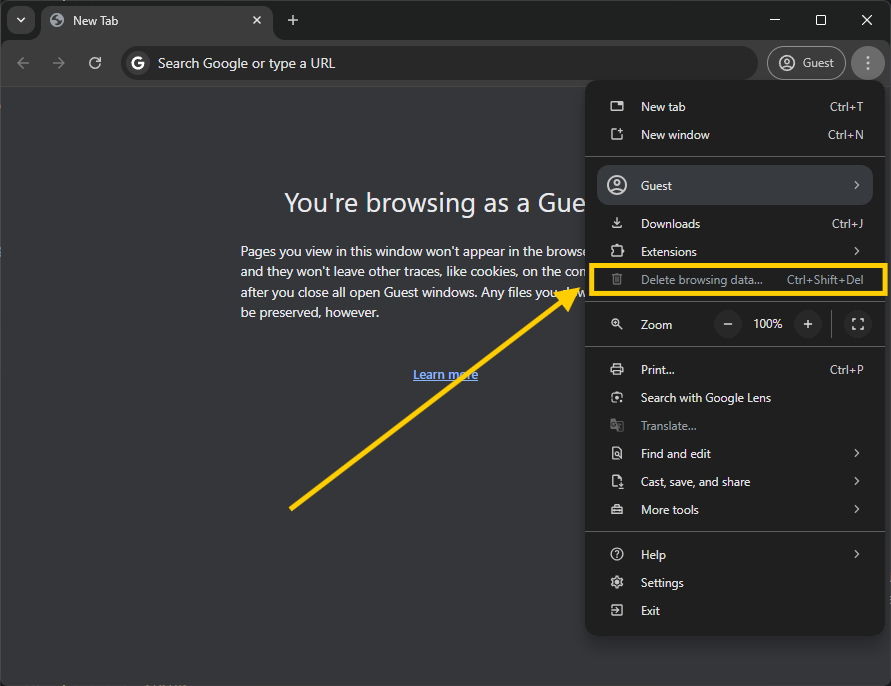
-
Select the
Advancedtab on the top right. Set theTime RangetoAll Time. Select the following:Browsing history,Cookies and other site data, andCached images and filesSelectClear data.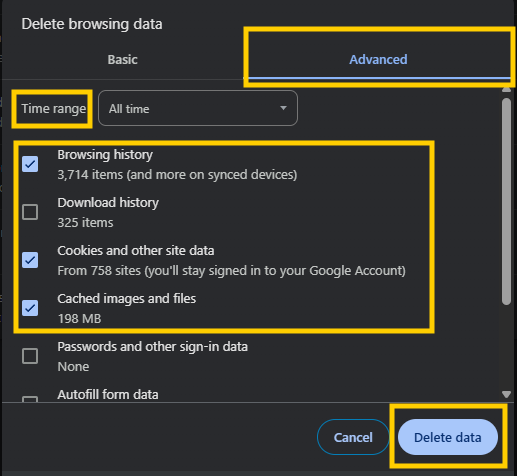
- If on a Windows computer, close and re-open Chrome to save your changes. If on an Apple computer, go
to the
Chromemenu on the top menu bar and selectQuitfor the changes to take effect.
Microsoft Edge
- Click the
Toolsmenu (three dotted lines in the upper-right corner), and open theSettingsmenu.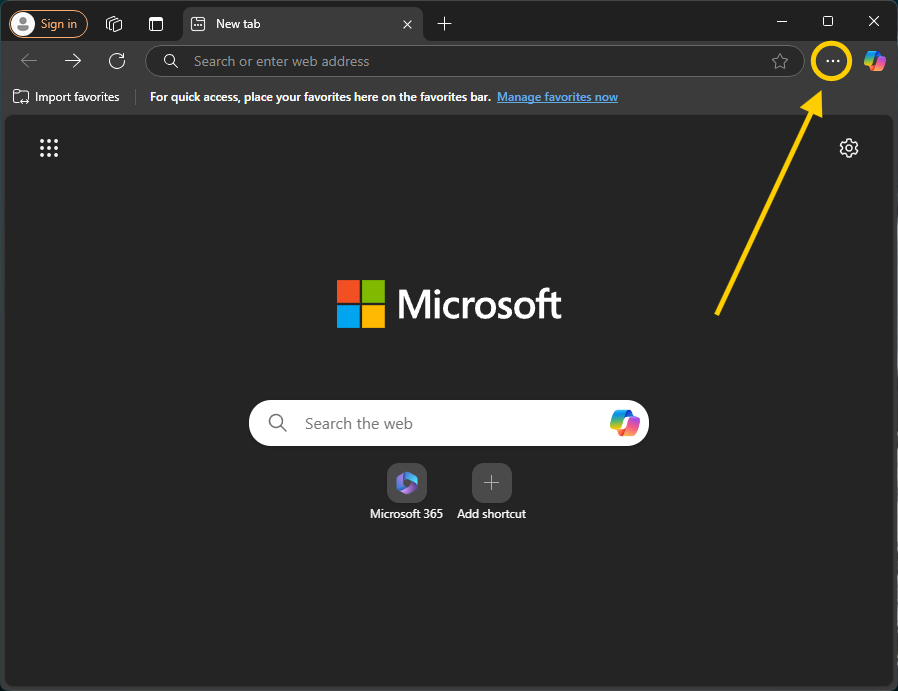
- Select
Delete browsing data...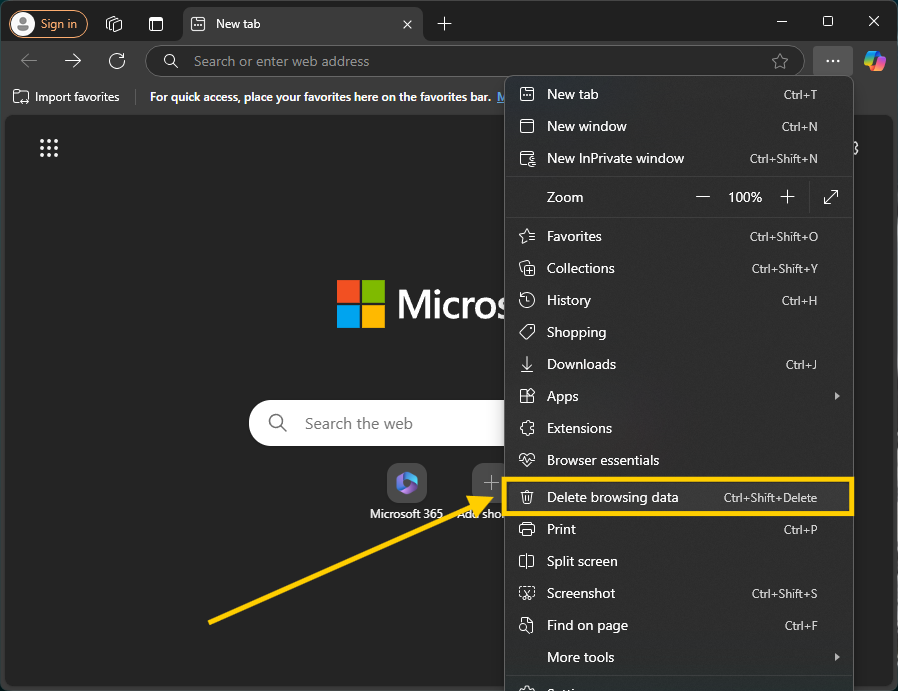
- Set the
Time RangetoAll Time. Select the following:Browsing history,Cookies and other site data, andCached images and filesSelectClear Now.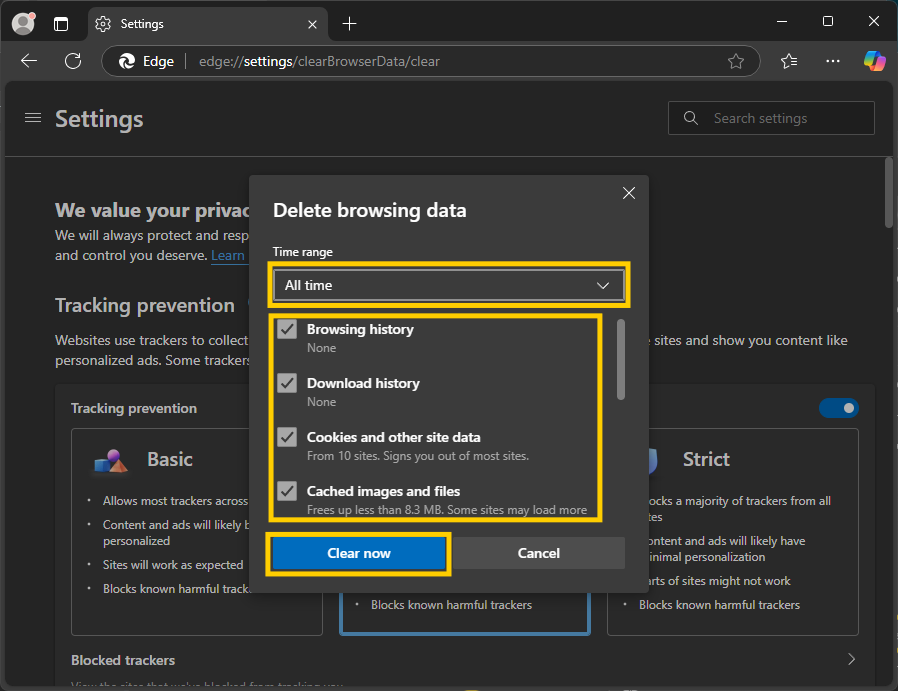
- Close and re-open Microsoft Edge completely for your changes to take effect.
Safari for macOS
- Go to the
Safariapp on your Mac. - On the top menu bar, choose
Safari > Settings, then clickPrivacy. - Click
Manage Website Data. - Then click
Remove All. - Go to the
Safarimenu on the top menu bar. - Select
Quitto close Safari and save your changes.